

This is not an April Fools joke, just to let you know. I just returned the second of two SD memory cards for our Nikon camera this morning. I returned the first one about a week ago. I got refunds. These cards are expensive and can set you back a hundred bucks or more.
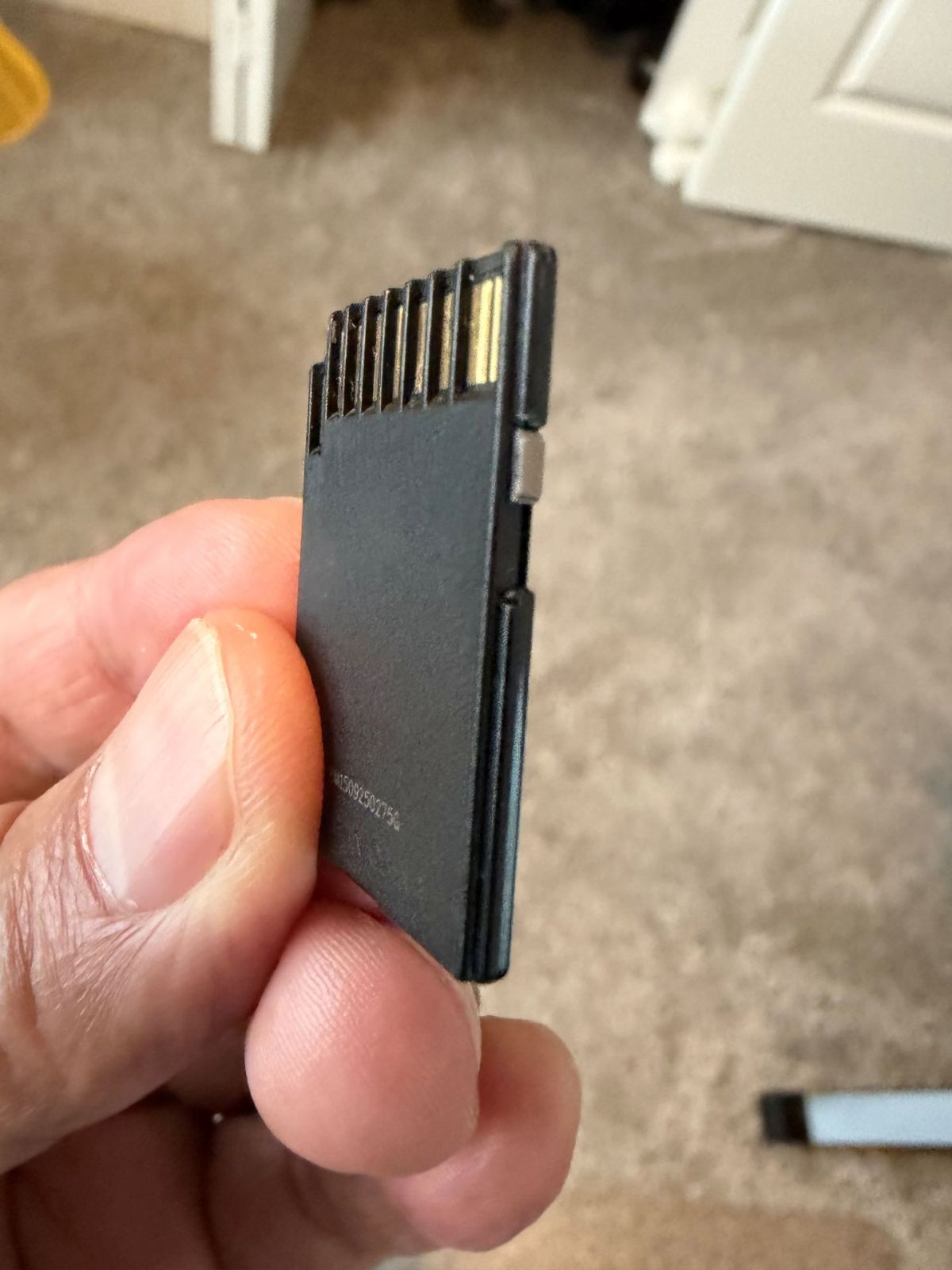
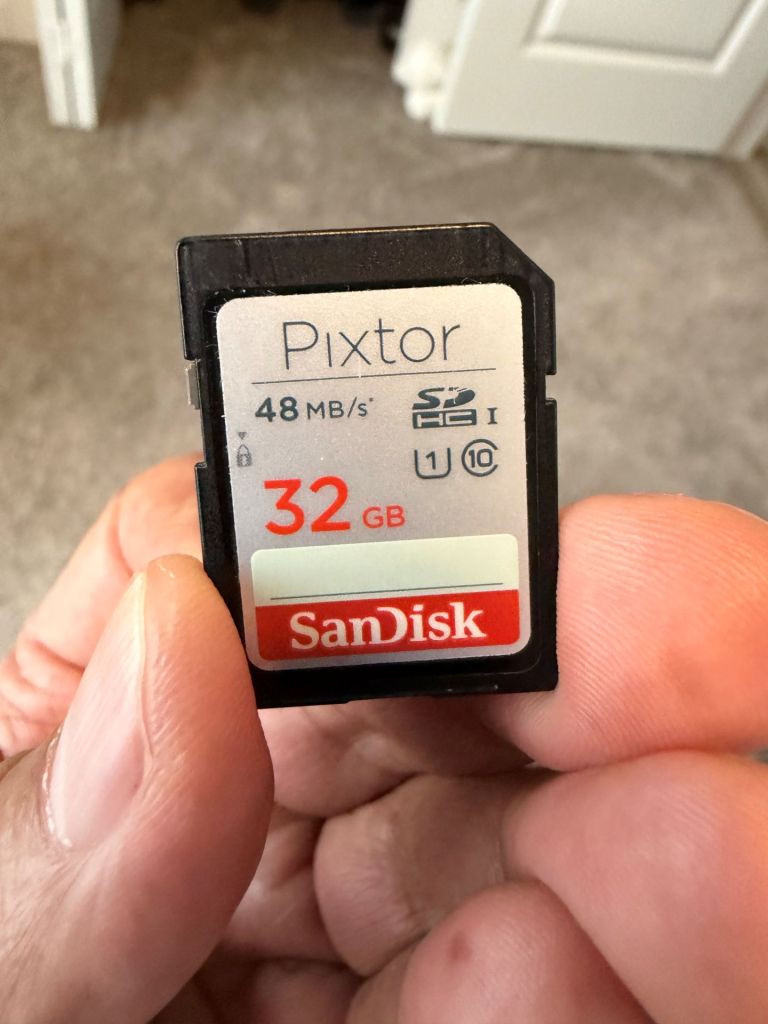
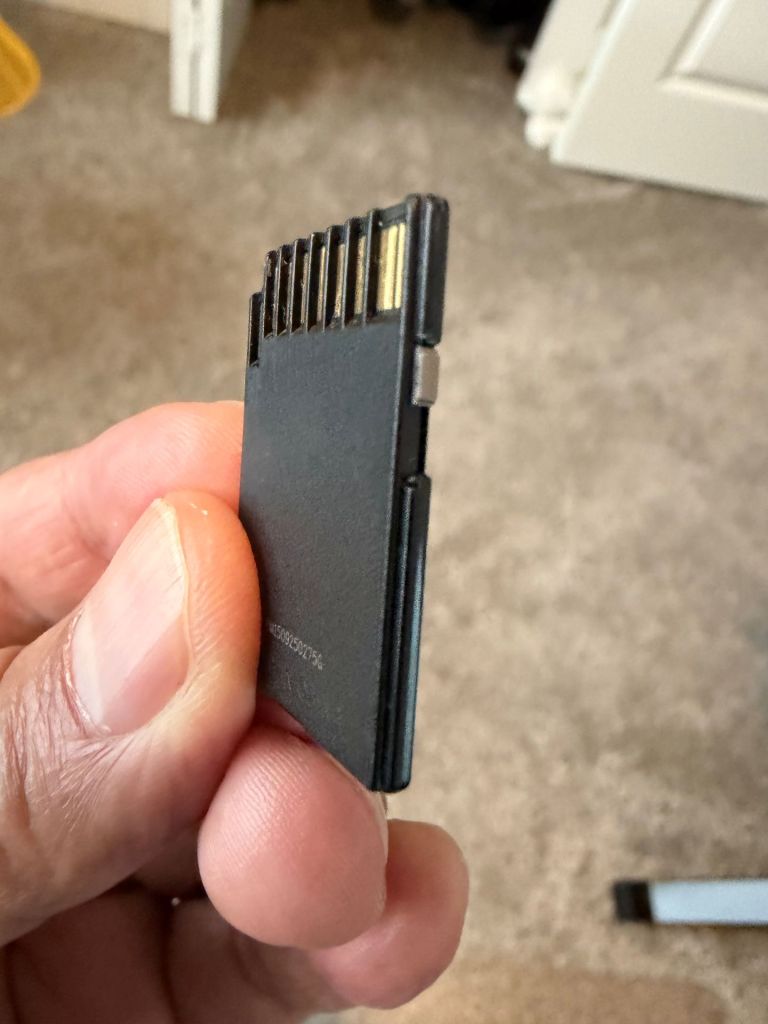
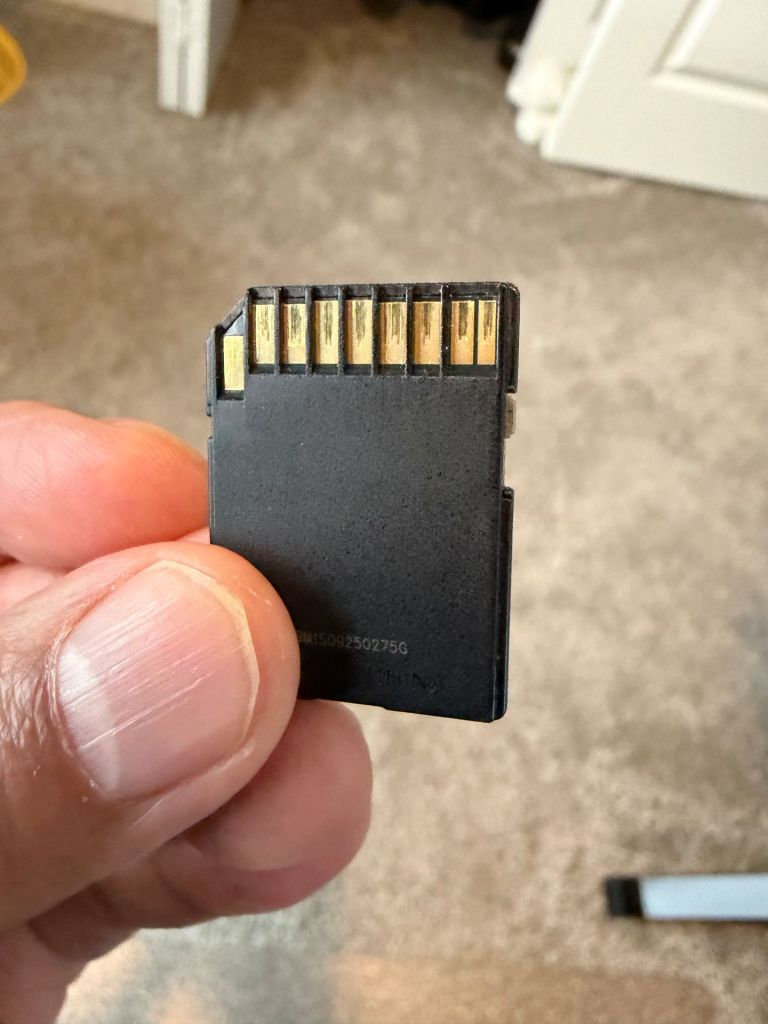
They both had the same problem—a loose locking switch on the card which is supposed to control whether the card is in a locked or unlocked position. If it’s locked, it’s impossible to upload photos and video from the camera to your computer.
The two SD cards were made by different companies, so the problem is not restricted to a specific manufacturer.
The sales staff said he’d never heard of the problem. I was incredulous. I looked on the web for evidence that this has been going on for years (which I told him). I found a page dated 2006 about the issue.
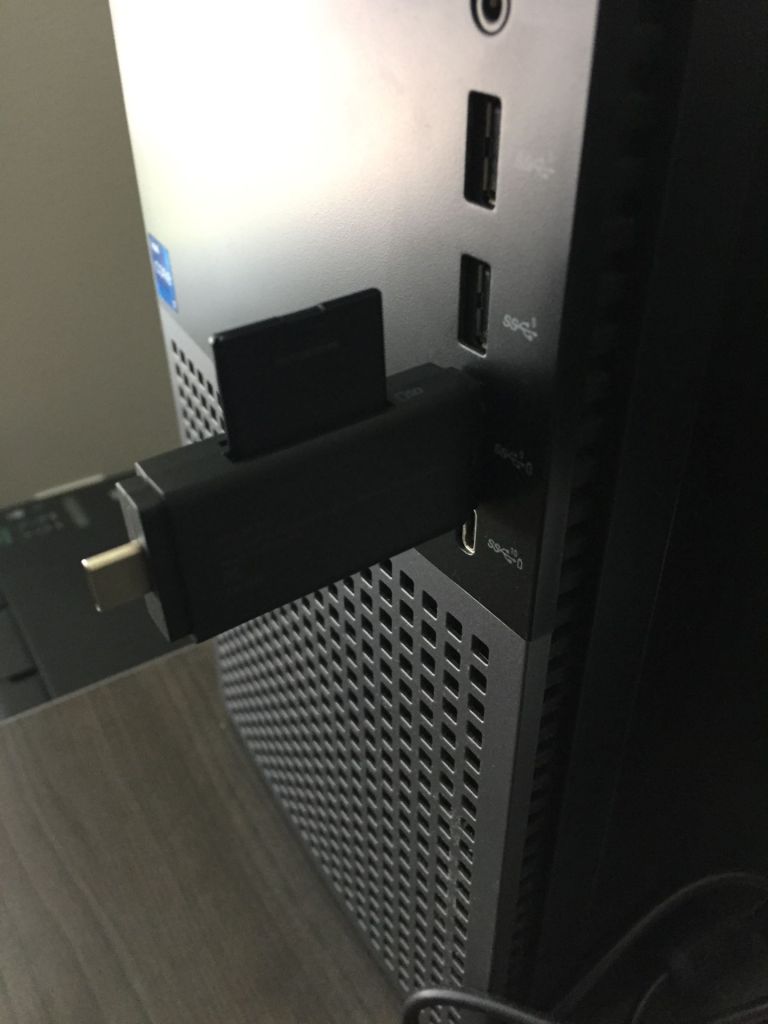
While it’s possible to accidentally push the switch from unlocked to locked, it shouldn’t do that just by sticking the card in the SD memory card reader in the computer tower or in a handy external SD card reader if the slot on the tower goes dead—which happened to me a couple of years ago (see my post “The SD Card Caper”).
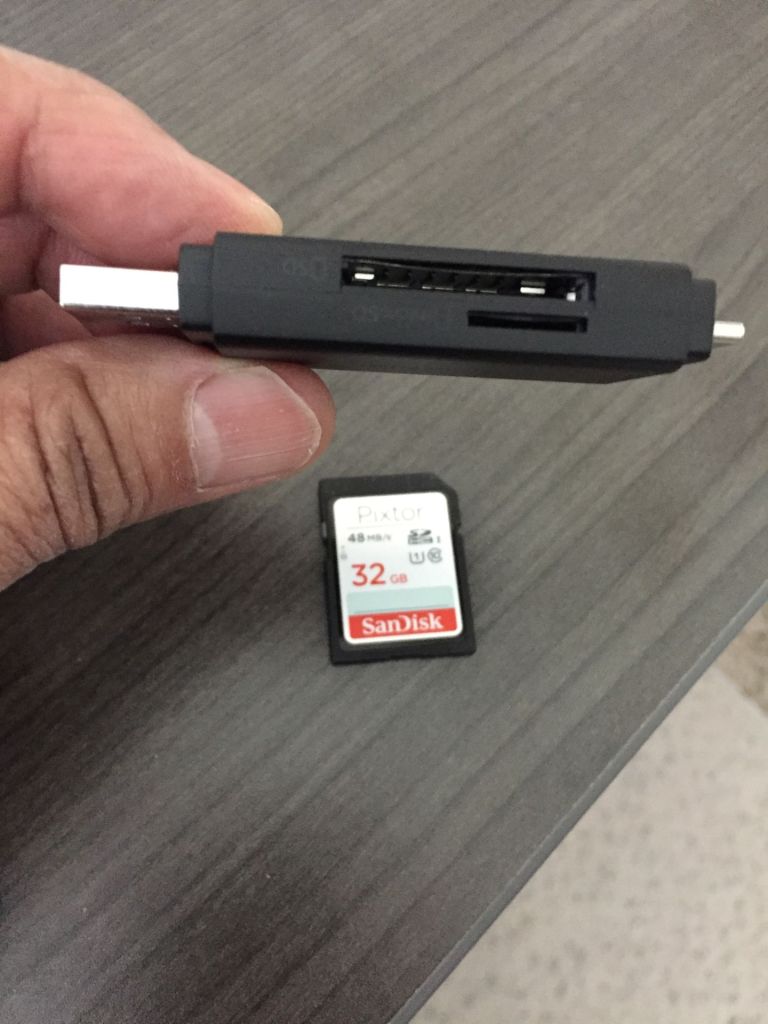
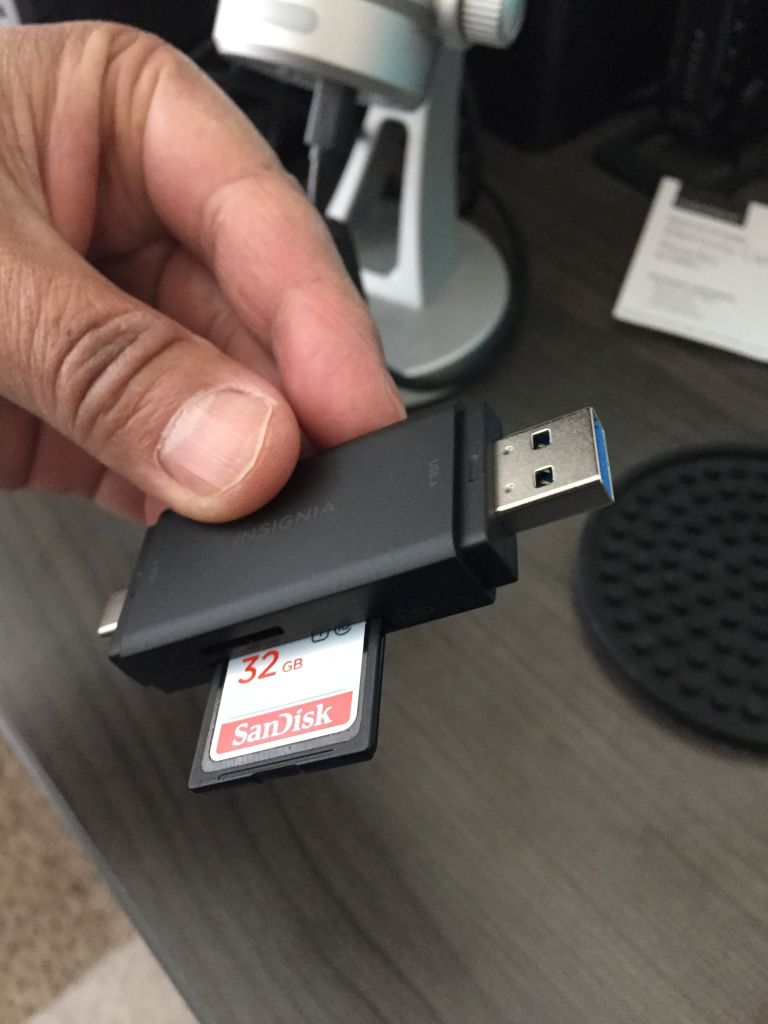
The switch is very small, as you can see in the pictures. In the pictures, the switch is shown in the unlocked position. If it slides into the locked position, you won’t be able to download your pictures except by copying them. It’s annoying to be unable to delete them. This could be embarrassing if somebody gets a hold of the card and decides to post the pictures of you and a certain somebody in a compromising position at the office Christmas party in the company newsletter.
People talk about gluing or using scotch tape to keep the switch in the unlocked position. It can be a problem on older cards, but it shouldn’t happen in brand new cards.
I could have made this an April Fool’s post by making up a story about trying to use superglue to fix a loose SD card switch. But people talk seriously about doing things like that. OK, maybe not superglue, but some kind of glue, possibly Elmer’s.
There might be a way to get around the crazy switch technology by somehow making an SD card that could converse with its owner. Remember those old 1980s era Chrysler New Yorkers that had a built in Electric Voice Alert (EVA) system which made the cars talk? Of course you don’t. That was in the 1980s. We had one. Our car was prone to saying things that sounded a lot like a dad jokes, like “A door is ajar.” It also said “Don’t forget your keys” and “Your washer fluid is low.”
But if the manufacturers could make the SD card communicate with you in simple language about locking and unlocking itself, it would make the gadgets a lot easier to manage. On the other hand, they would need to work on the Artificial Intelligence (AI) to make sure you and the card are on the same page.

Hal; unlock the card.
Don’t forget your keys.
Darn it! No, Hal; unlock the card!
When is a door not a door? When it is ajar! Har! (sound of hand slapping a knee).
Unlock the card, Hal, PLEASE!
Your libido is low.
OK, Hal, last time; I want you to unlock the card now!
Place the body in the trunk of the car.
On second thought, maybe you should try scotch tape.

 Go Retire Psychiatrist